7. Extract what they say
A document on the case is paper. The Extract tab is where it becomes values, read with the schema its type points at, with the page each value was read from kept beside it.

Both kinds of document together: what matters here is whether a document has a type with a schema behind it, not where it came from.
A document that cannot be read says why, in the place where the button would otherwise be:
- Not classified: set its type on the Documents tab.
- No extraction schema for this type: write one, and the link is right there.
Read it
Press Read this document. It is a paid act: the document is sent to be parsed and read, and the pages billed are shown afterwards. It reports its progress as it goes: Queued, Sending the file, Mapping the pages, Reading the document.
Leave the page if you like. The extraction settles on its own and is there when you come back.
Check the evidence
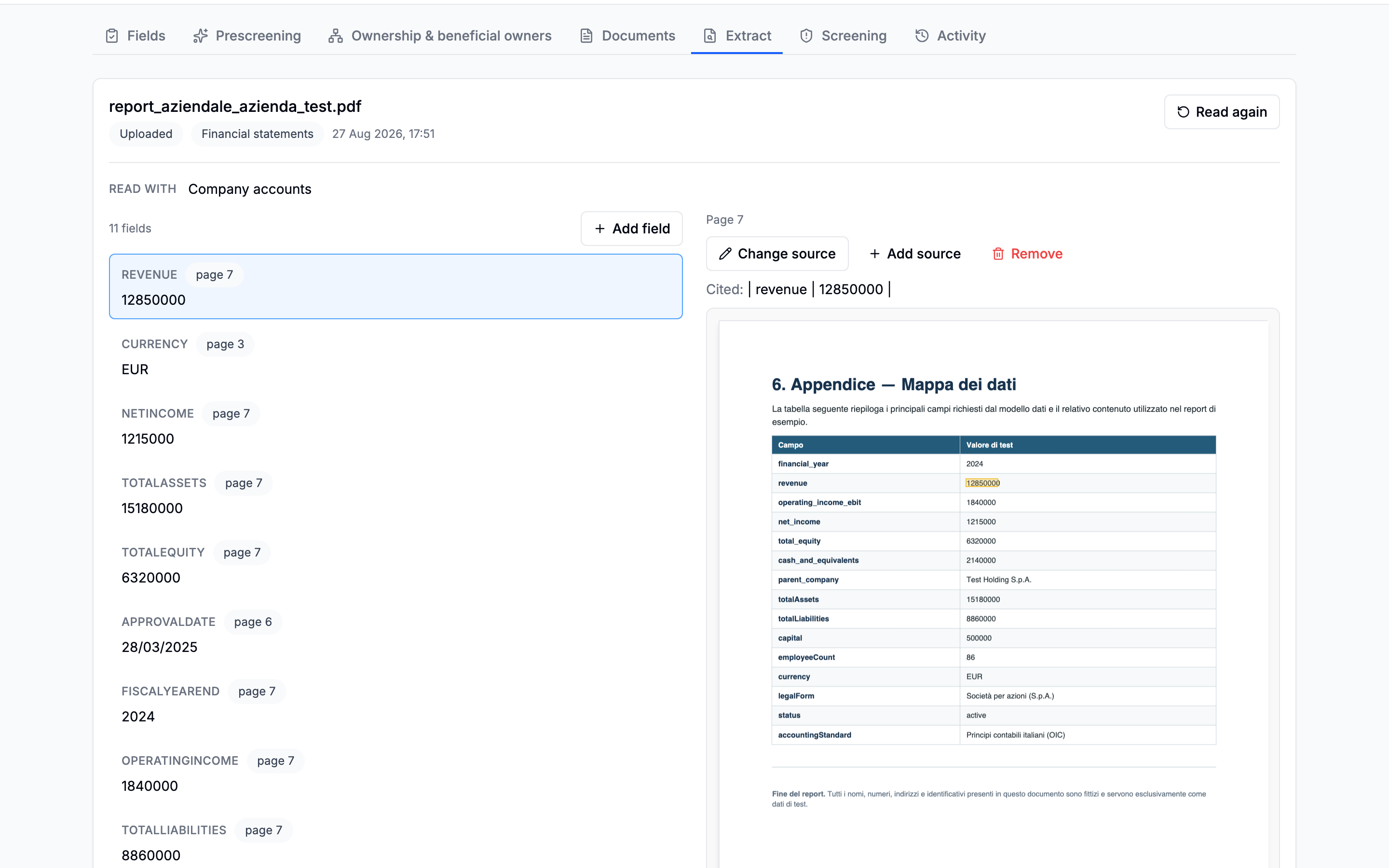
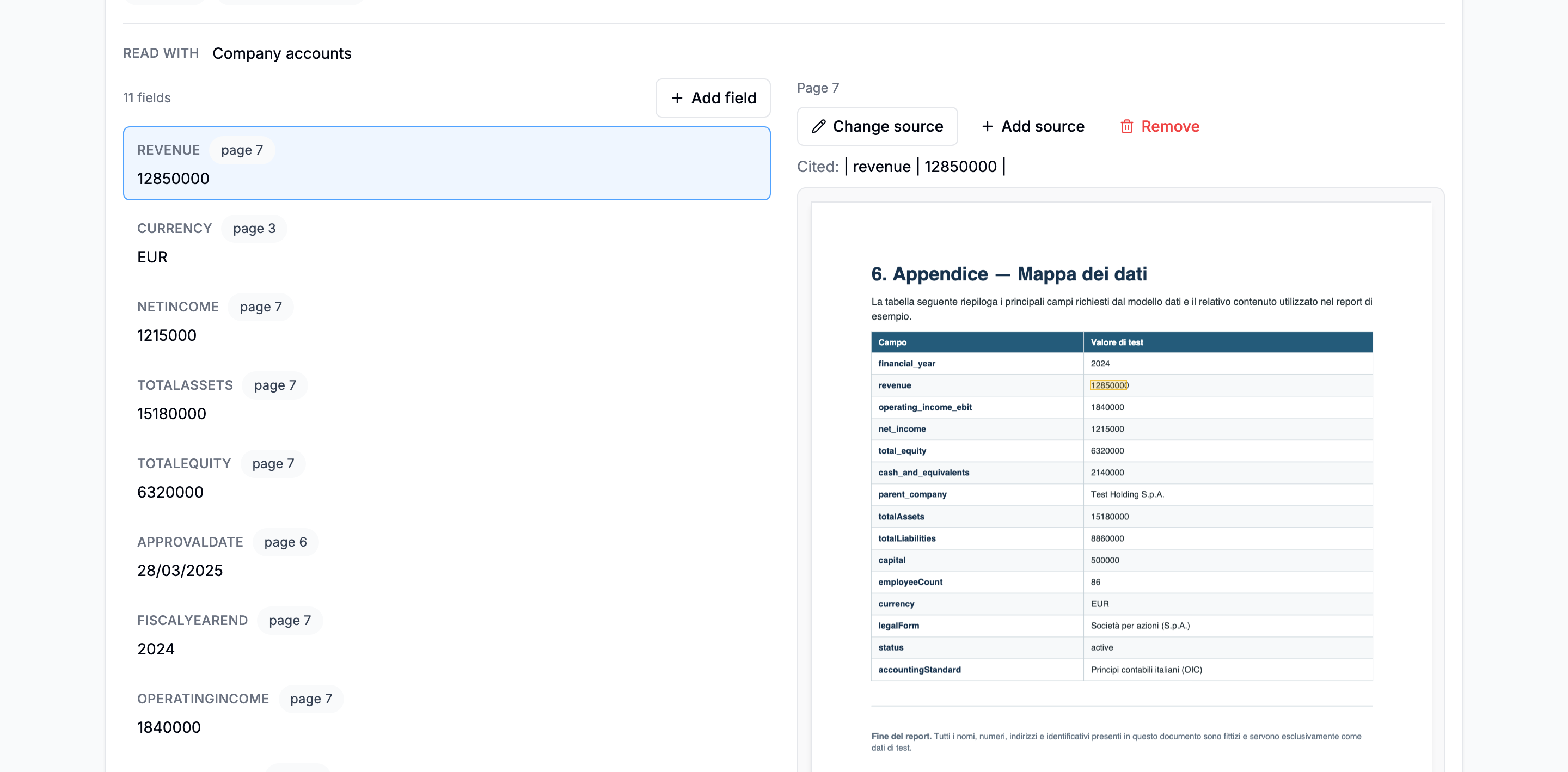
This is the part worth your time. Every value the schema pulled out is listed with the page it came from, and clicking one shows you that page with the passage marked.

Three things you can do here, and they are the difference between a document that was read and a document you have checked:
- Correct a value. The reading is a model's reading; the paper is stronger than the reading. A correction outranks every automatic source on that field.
- Point a value at the right passage, when the citation landed on the wrong line.
- Remove a citation that supports nothing.
Everything you do here is recorded in the case's activity with what the value was before.

Where the values go
Straight into the Fields tab, joined onto the fields your configuration asked for by name. A
schema written for an Italian bilancio that calls a figure utile_esercizio answers the field called
netIncome, because the catalogue carries the aliases.
That join is also the reason a value can go missing in two different ways. Either no document carrying it was read, or the schema that read it called it something else, and both are reported, from both ends. See Configurations: fields.
Next: Work the Fields tab.
Going deeper: Extraction · Reading a document