2. Search and open a request
New Company Search is the main page and the first item in the sidebar.
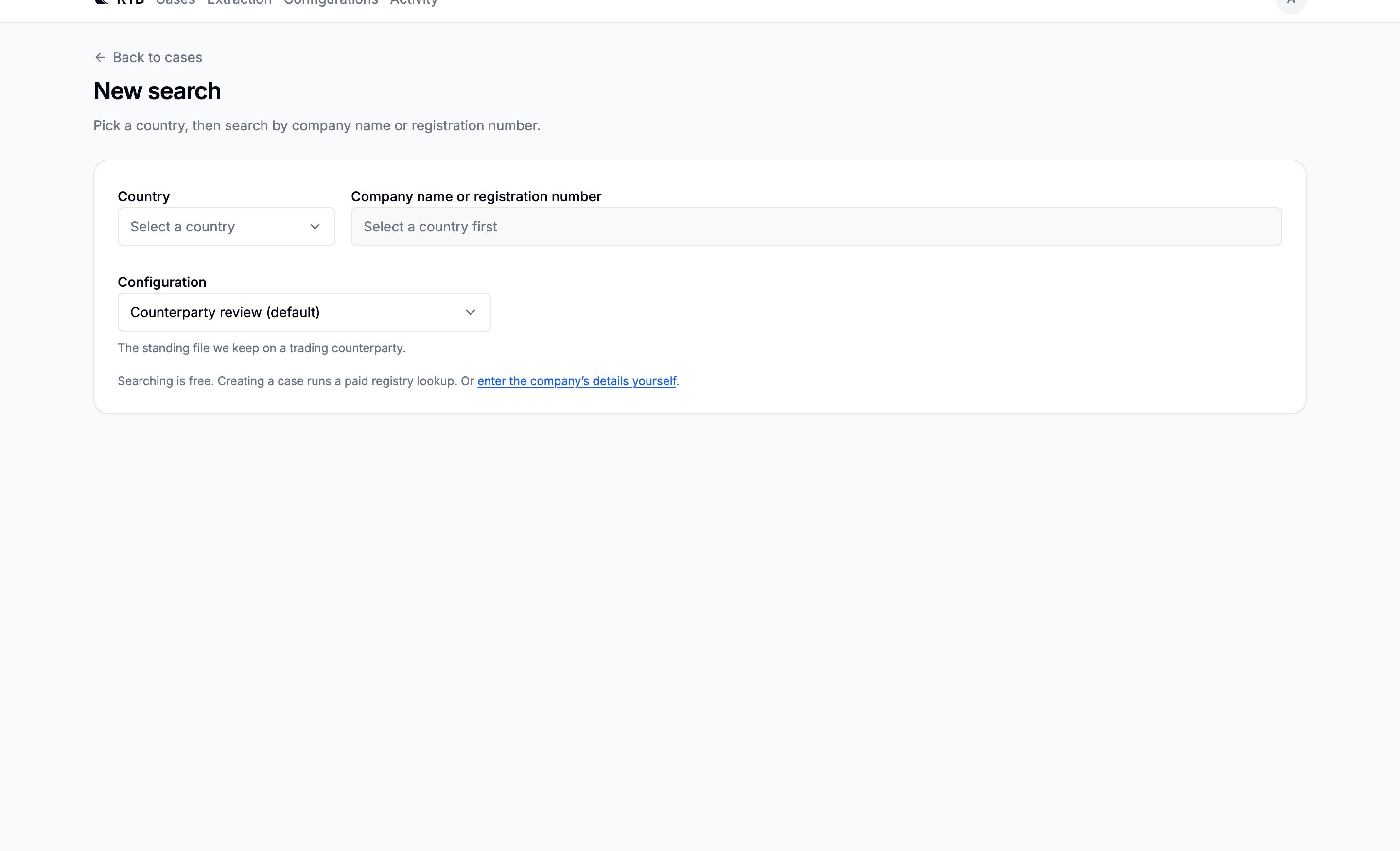
Search by name or registration number
The country select opens on Any country. Leave it there when the legal name contains a recognisable
legal form, such as Oy, GmbH, s.r.o. or Lda: the search can use that form to choose the likely
registers. Choose a country when you know it, or when you are searching by registration number.
Searching is free. Press the arrow in the search field when the query is ready; the results appear below the controls.
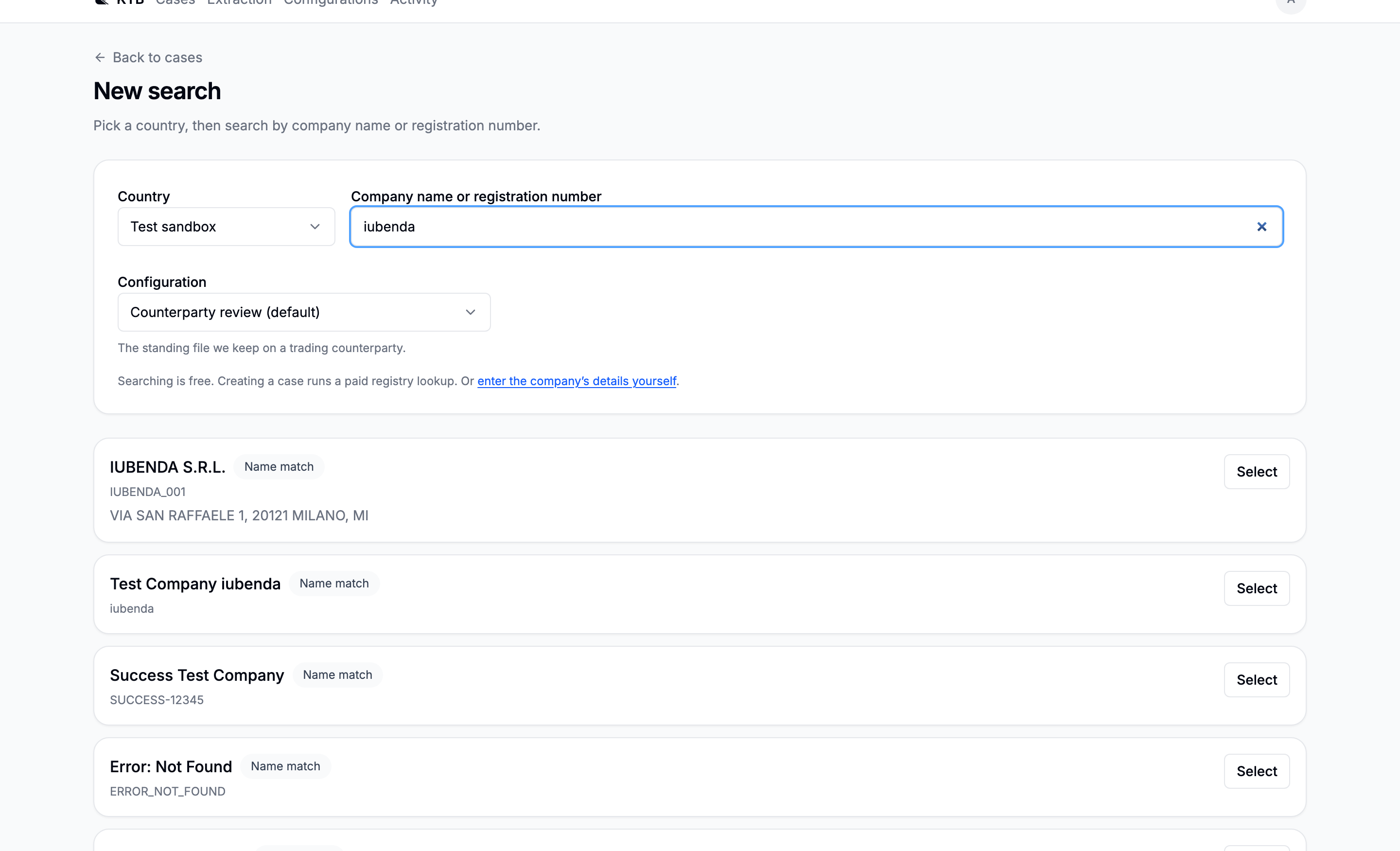
If no result is the company you need, use Add a company manually instead of choosing the closest match. See Companies no register answers for.
Choose the checks
Four checks are selected by default:
- Company & legal representatives, which is always included;
- AI prescreening;
- Ownership graph;
- Adverse media.
Select a chip to switch an optional check off. Company AML screening starts automatically when the registry record arrives, so it is explained below the chips rather than shown as another switch.
The ownership summary shows the maximum automatic spend and the ownership threshold. Open it to change either value. These controls do not change when a trackpad scrolls over them.
Choose the fields to verify
The configuration is collapsed until you need it. Open Configuration to choose the field set for the request.
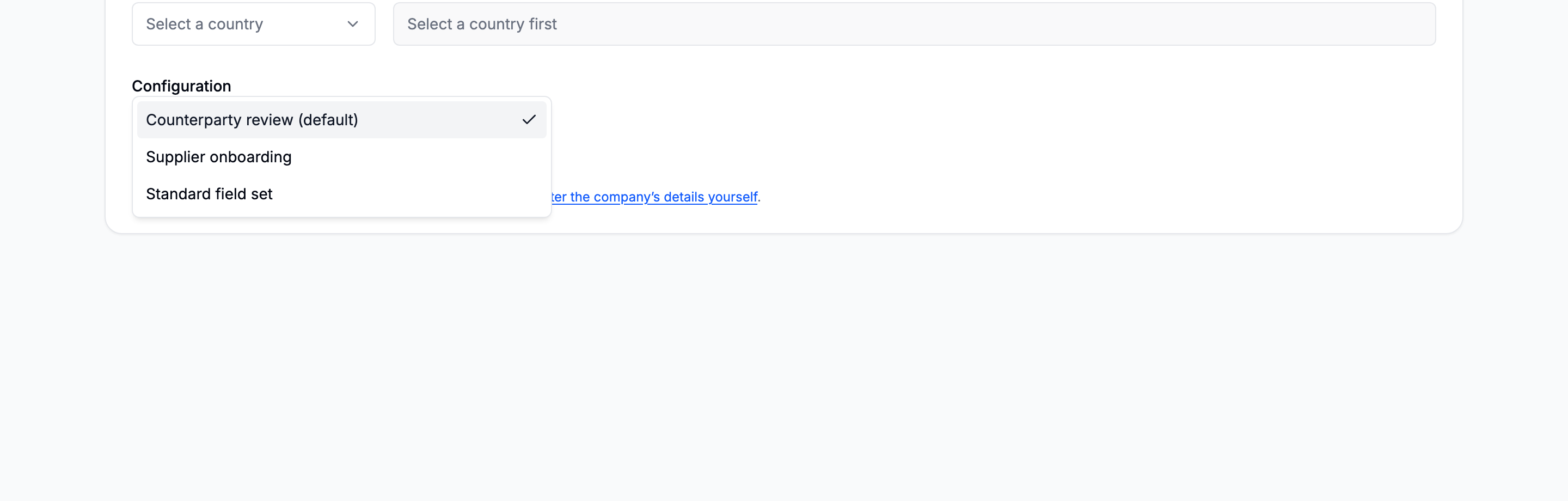
A request stores a snapshot of the selected configuration. Editing that configuration later does not silently rewrite work already in progress.
Confirm the request
Select a result to review the company, configuration and checks that will run.
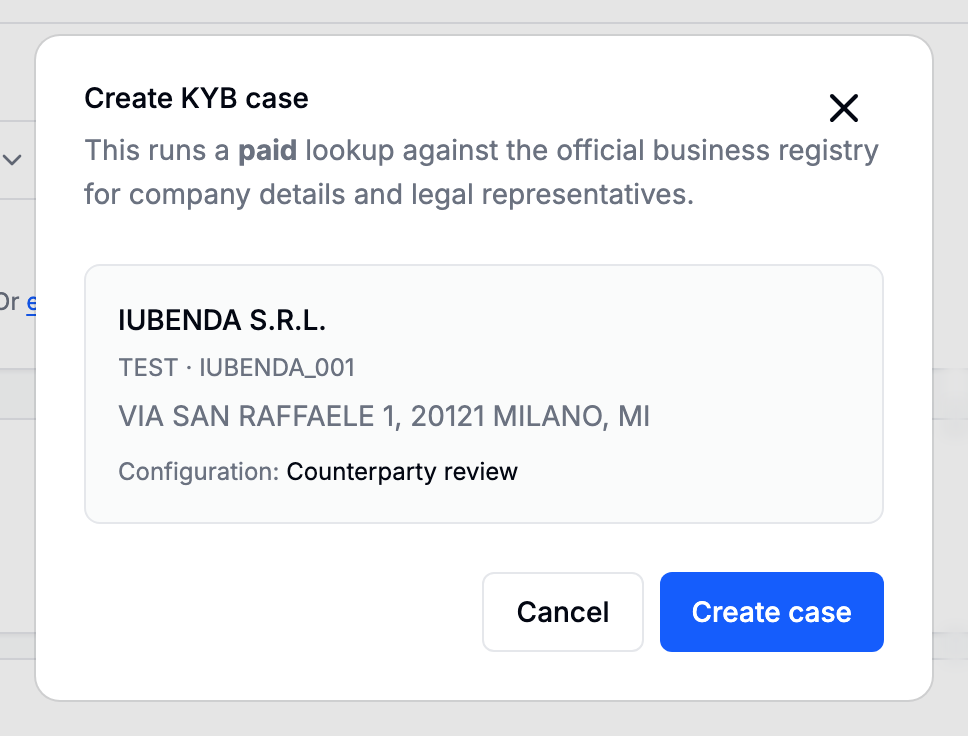
Press Create request to start the registry lookup and enabled checks. The request appears in the sidebar immediately and opens on Company details.
Next: The request page.
Going deeper: Searching and opening a request · Companies no register answers for